Assign practice.
Review the work in one place.
Students open assignments and submit answers in their portal. See work awaiting review, leave a grade, and give feedback. Homework and tests are available on Pro.
- Review
- Statuses
- Magic link

Product screen · Demo example
Sound familiar?
A typical picture without a platform:
- You drop homework into Telegram and half the group "forgot to submit"
- A grammar quiz in Google Forms means one more link and one more spreadsheet
- Cue cards get checked through voice notes and screenshots in a chat
- You have to ask who has submitted the work
With Lenitera
What changes for an online tutor:
- Assignments and quizzes sit in a queue with clear statuses
- Reusable subject and exam-preparation templates from your library
- Grading and feedback in a single dialog
- The student submits through a link — no password needed
How practice works
Pick a task from the library
A ready homework task or test — or create one on the spot. Assign it as a step in the path.
The student submits through a link
A magic link to their dashboard — no sign-up, no password. Status: assigned → in progress → submitted.
Review it and give feedback
Leave a grade and feedback. If a topic was difficult, suggest a review or more practice.
From assigning to reviewing, in one flow
Three points of control
The queue on your side, the template in the library and submission in the student portal — one cycle without chat threads.

Homework queue
For review, overdue, in progress, done — you see straight away who needs a nudge.
Accept it or send it back without hunting for the submission in a chat.
Homework templates in the library
Build a task once — the brief, the materials, a default deadline. After that you assign it to a student or a group without pasting anything into a chat.
- Ready templates that match your program
- Reassign to new students
- Preview on hover without opening the card

Tests with auto-grading
A quiz with answer keys, points and a pass threshold. One template works across several programs and different students.
- Single choice / multiple choice / open answer
- Auto score and pass threshold
- The whole question structure on one screen
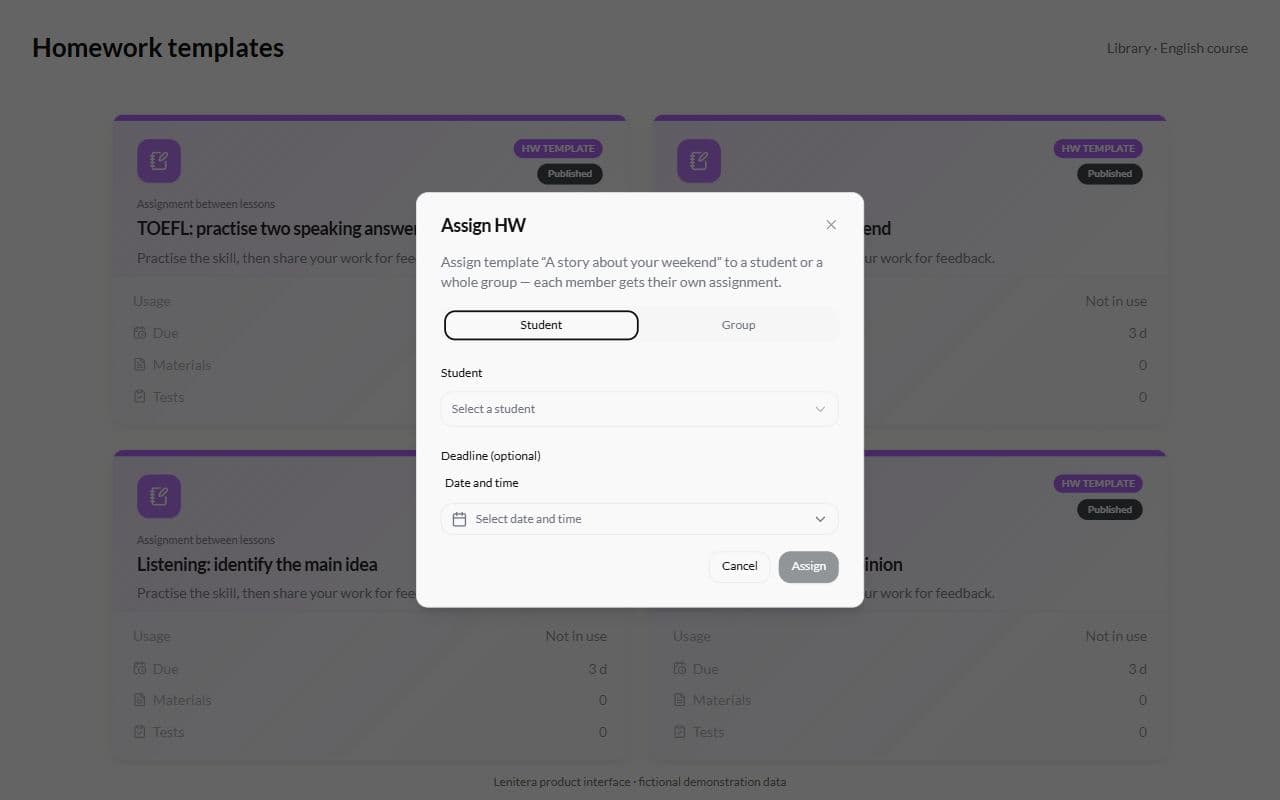
Assign it to a student or a group
From one template, assign to a single person or to the whole group. Every member gets their own assignment and their own submission status.
- A student or a group
- An optional deadline
- The template stays in the library
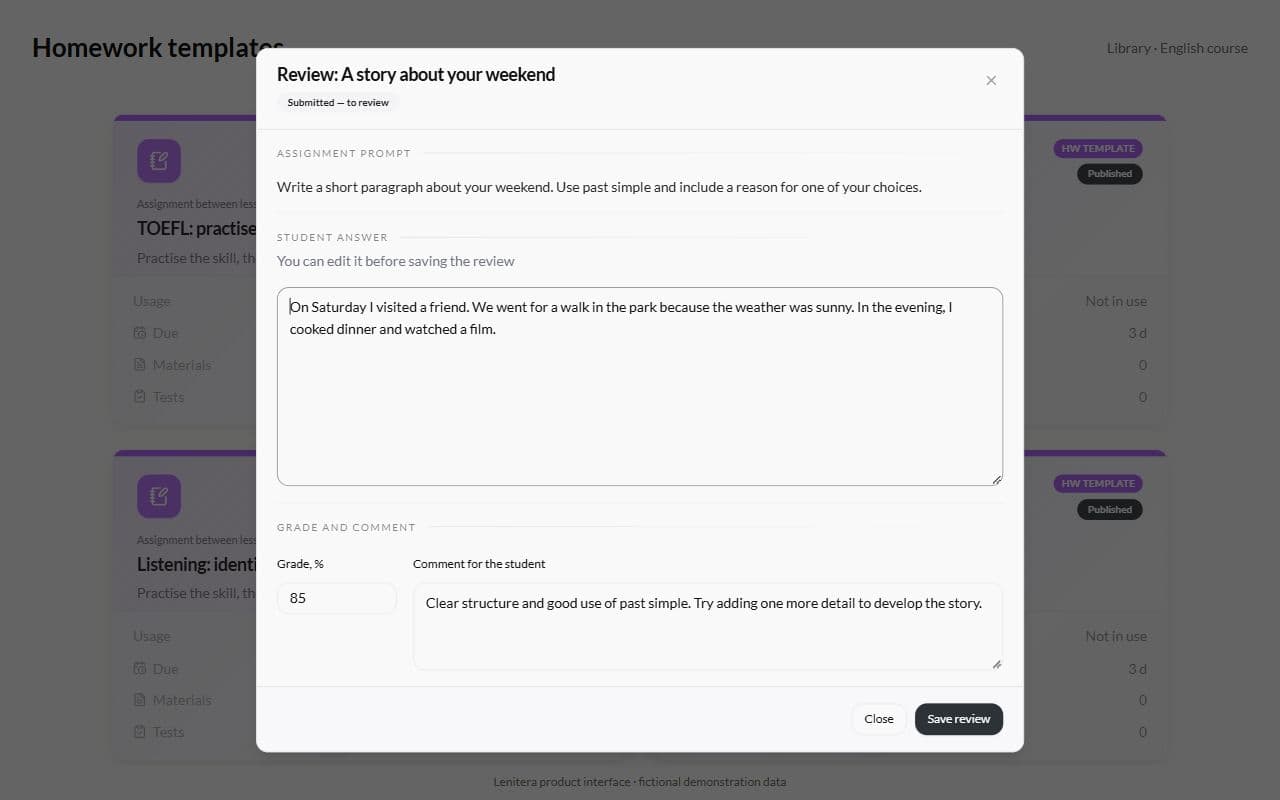
Review with a grade and a comment
Open a submission and you see the brief, the answer, a place for the grade and your feedback. Everything is saved in the task history.
- The brief and the answer in one dialog
- A grade and a comment for the student
- The "Submitted — for review" status
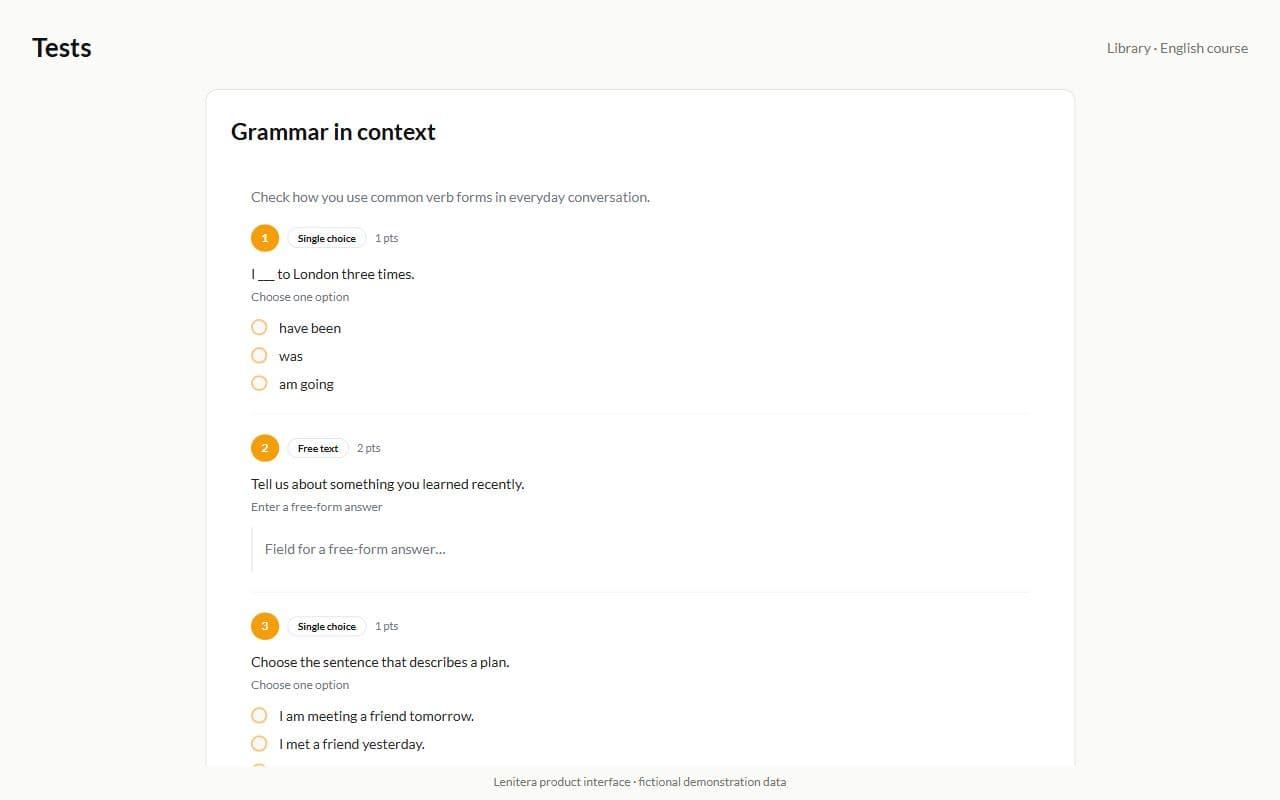
The student takes the test in the browser
Question by question, with a progress bar and keyboard shortcuts — no Google Forms and no lost links.
- Magic link access
- Progress and pass mark on screen
- Auto-grade where you set answer keys

From the student side
Submitting without sign-up — through a link or in the dashboard
The homework workspace
The brief, the materials and a Submit button — no extra screens.

Taking a test
Question by question, with progress and submission — a clear exam in the browser.
The task list
To do / for review / results — the same statuses you see.

The test catalog
Ready quizzes in your library for diagnostics, practice, and exam preparation.

More for your teaching

Learning plans
Lessons, materials, homework, and checkpoints arranged around each student's goal
Learn more
Vocabulary flashcards
Vocabulary, formulas, definitions, and key concepts as part of the learning plan
Learn moreStudent portal
Homework, tests, and materials through one dashboard — no more "where is the link?"
Learn more
Frequently asked questions
- No. A magic link — they open it and submit. A password is optional.
- Yes. Tests from the library with answer options are graded automatically.
- Review the results and offer feedback or another activity. You can configure a review activity in advance so it becomes available when the score is below your chosen threshold.
Try Lenitera in your teaching
Start with a template and one student. Your first 14 days of Pro need no card.