Your lesson schedule.
With each student’s program and notes.
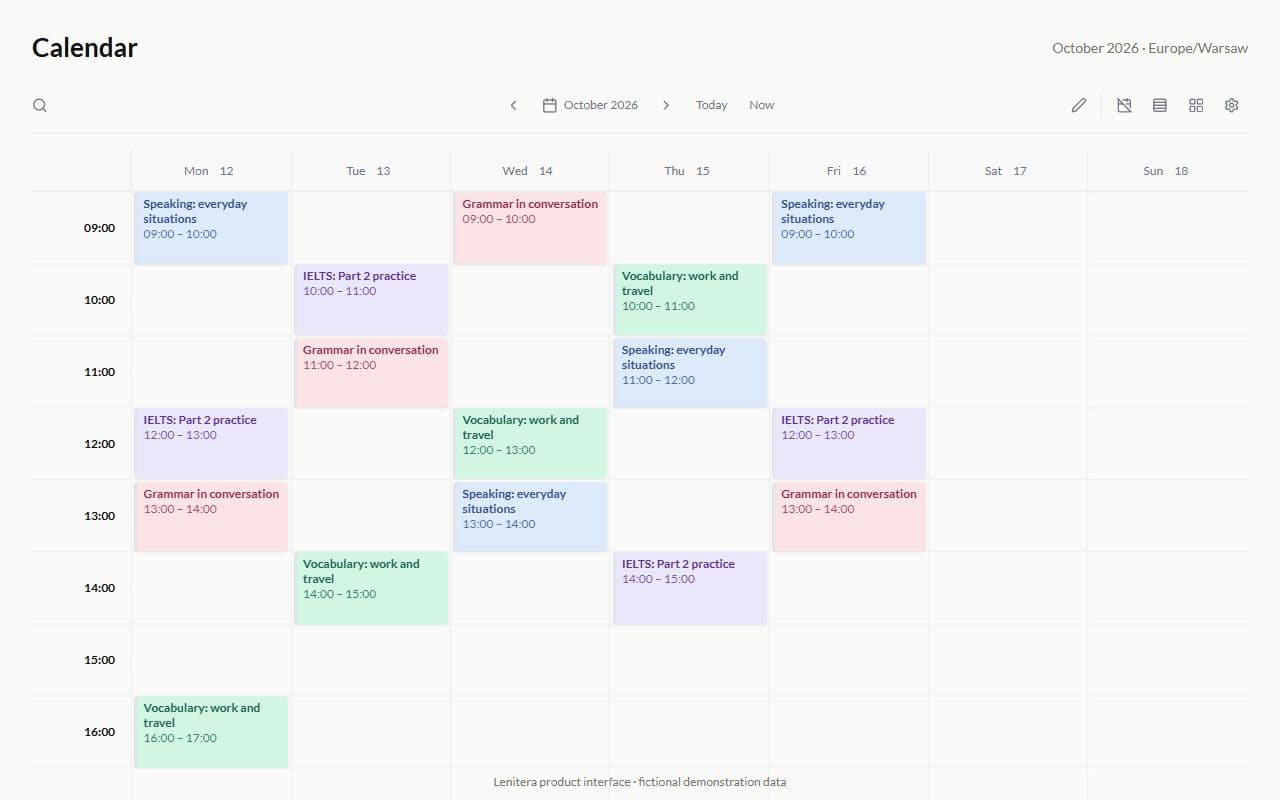
Plan one-to-one and group lessons, set your working hours, and reschedule classes. Open the student and their program from a calendar event.
- Schedule views
- Overlap protection
- Profile from an event
Product screen · Demo example
Sound familiar?
A typical picture without a platform:
- Google Calendar knows nothing about the program or the student progress
- Moving a speaking session means a chat thread and a manual fix
- Sick days live somewhere else, so it is easy to book over them
- The grid is clogged with weekends and non-working hours
With Lenitera
What changes in your schedule:
- The schedule is linked to the student, the program and the path
- Conflicts and time outside working hours show up before you save
- Time off syncs with online booking
- The student profile, straight from an event on the grid
How it works in practice
Set your own rhythm
Working hours, lunch, days off — the grid shows only the time you actually have.
Build the week without chaos
The right view, filters by student or group, holidays blocked out — slots stop colliding.
Run your day from the calendar
Move a lesson, change a status, jump into the student profile — without hopping between sections.
Set working hours, add lessons, and manage your schedule
Four schedule views
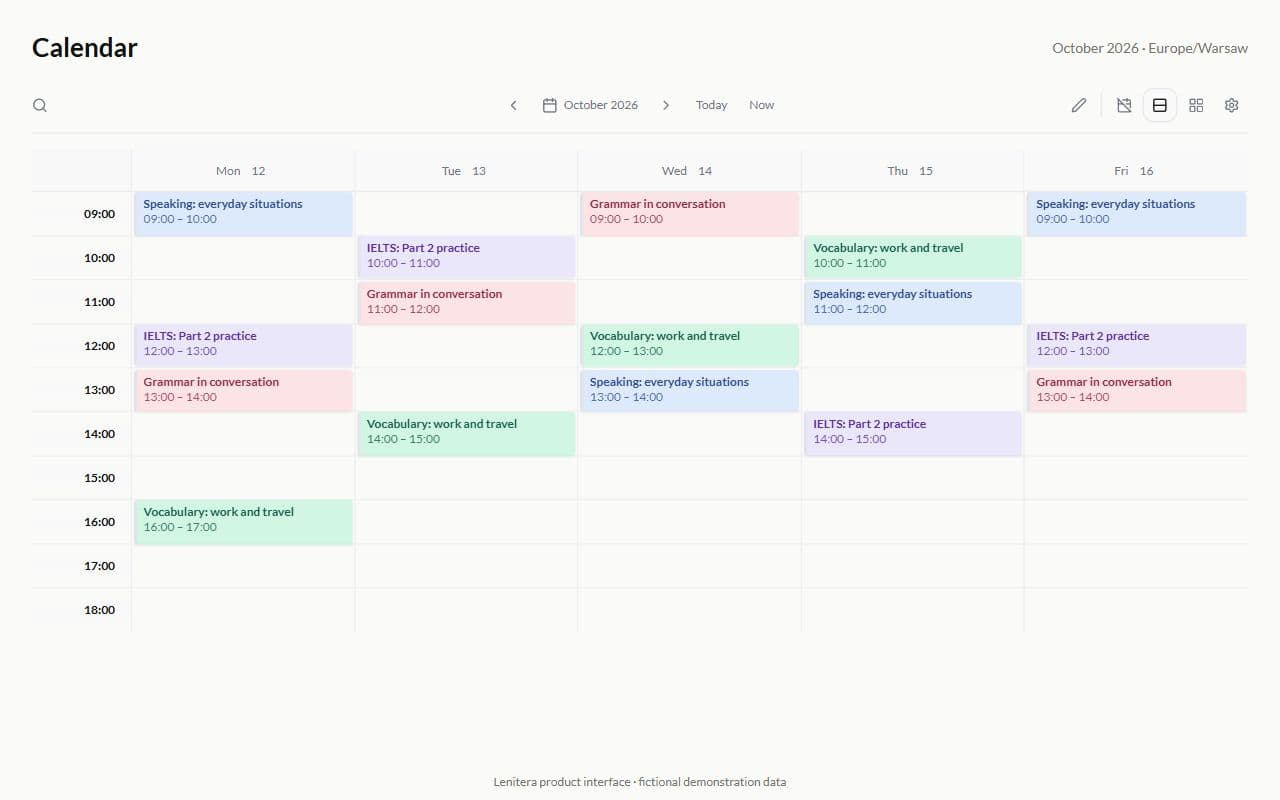
Switch the view to fit the task — day, week, month or list. One calendar, no extra services.

Day
Focus on a single day: exact slots, breaks and time off without the extra grid.
Handy when you prepare for a packed day or move one specific lesson.
Filters: only the slots you need
Keep one student, a group, a program or lessons with a path on the grid. Prepare for a lesson without the noise of the rest of your schedule.
- Student
- Group
- Program
- With a path

Working hours and a clean grid
Hours per weekday and a lunch break. Hide early mornings and weekends so the grid shows only the time you can actually book.
- Hours per day
- Lunch
- Hide early mornings
- Hide weekends
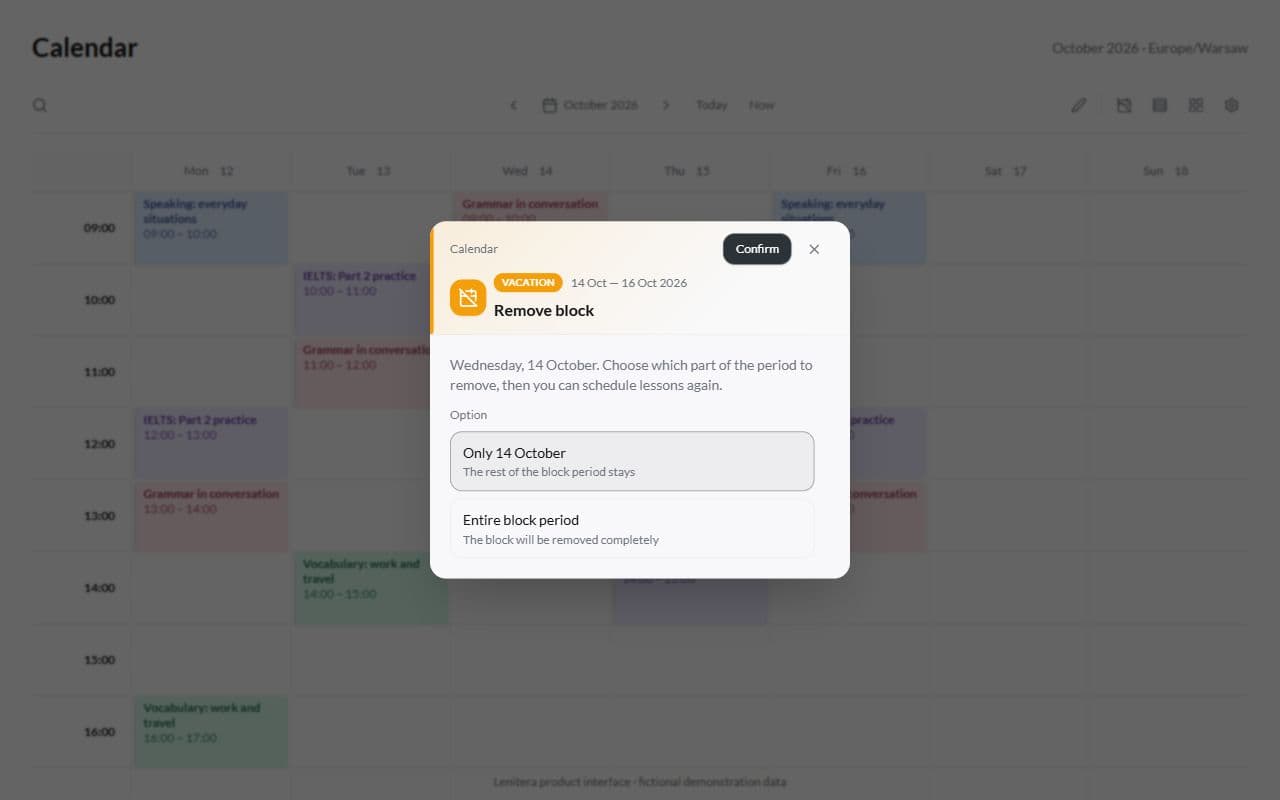
Sick leave you can lift precisely
When plans change, reopen a selected day or the remaining part of your time off. Other closed days stay as they are.
- Sick leave / holiday / unpaid time off
- Lift only the selected day
- Or from this day to the end of the period
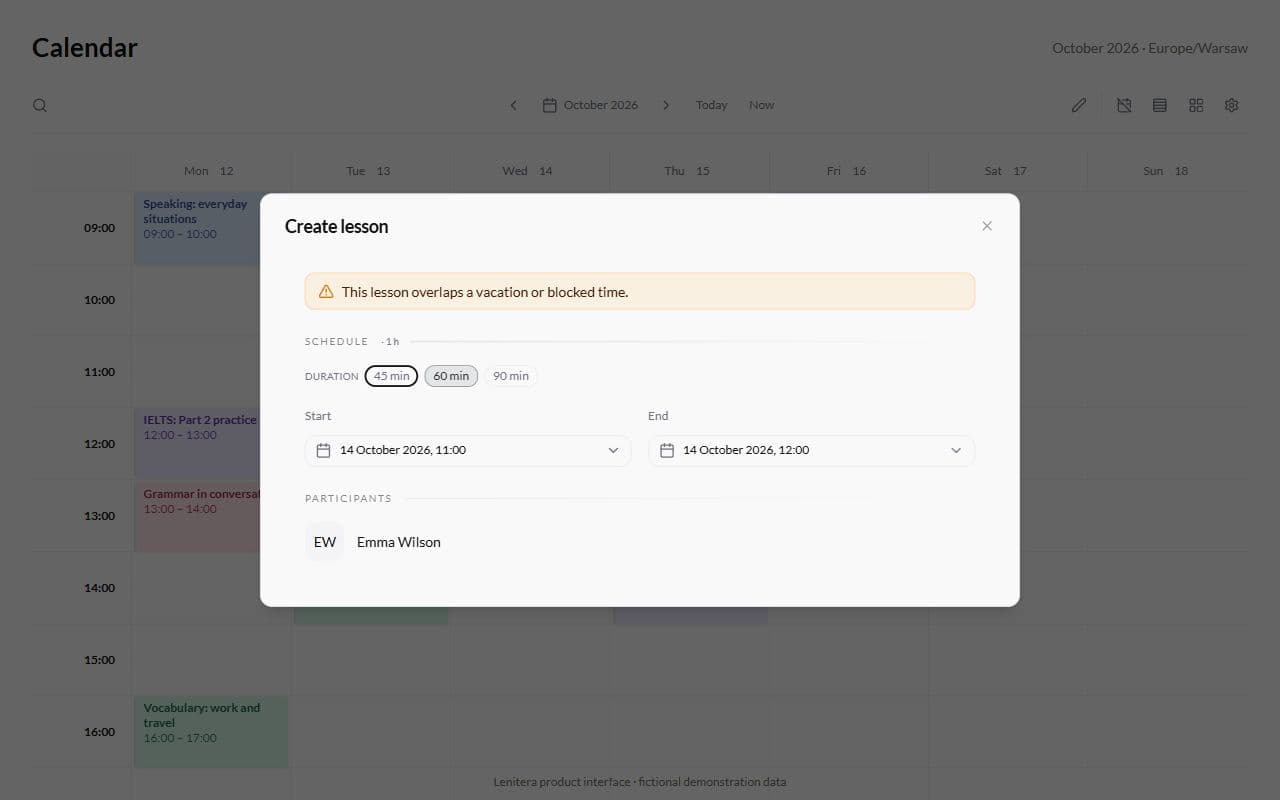
Protection from scheduling mistakes
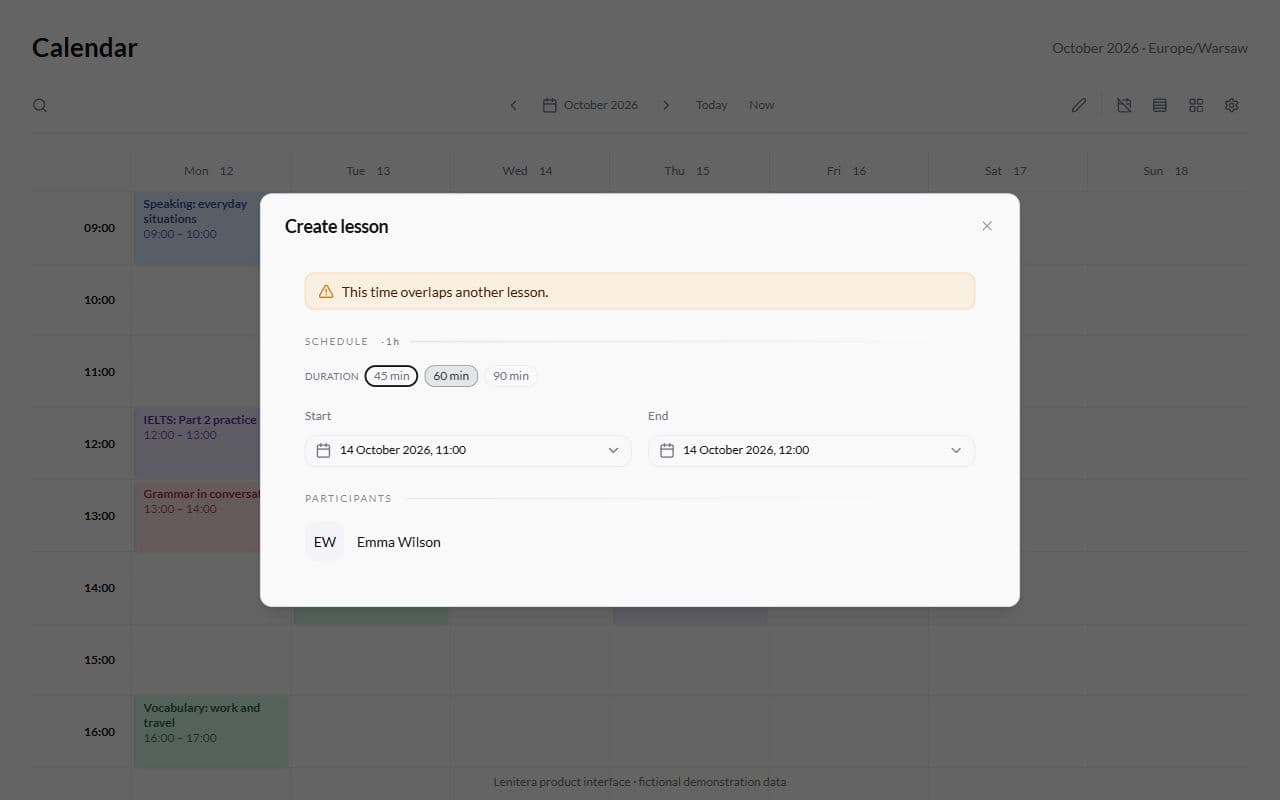
When you create a lesson you immediately see an overlap with time off, a conflict with another lesson and time outside working hours — before you press Create.
- Overlap with time off or a block
- Conflict with another lesson
- Time outside working hours
More from the calendar
Rescheduling, time settings, and student details for everyday teaching
Compact mode and grid step
Density to match your pace: compact mode and a 5 / 15 / 30 / 60 minute step.
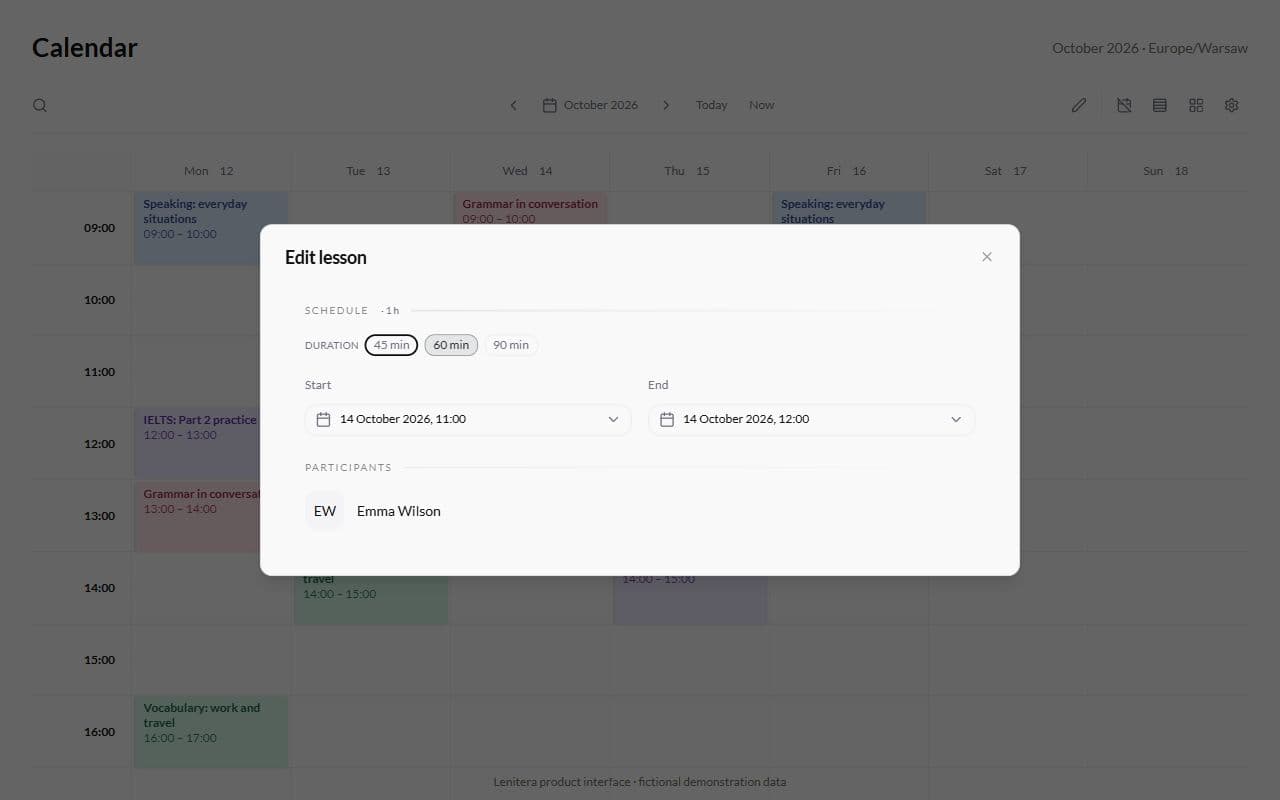
Rescheduling and editing
Time, status and notes — in one dialog, without chat threads.
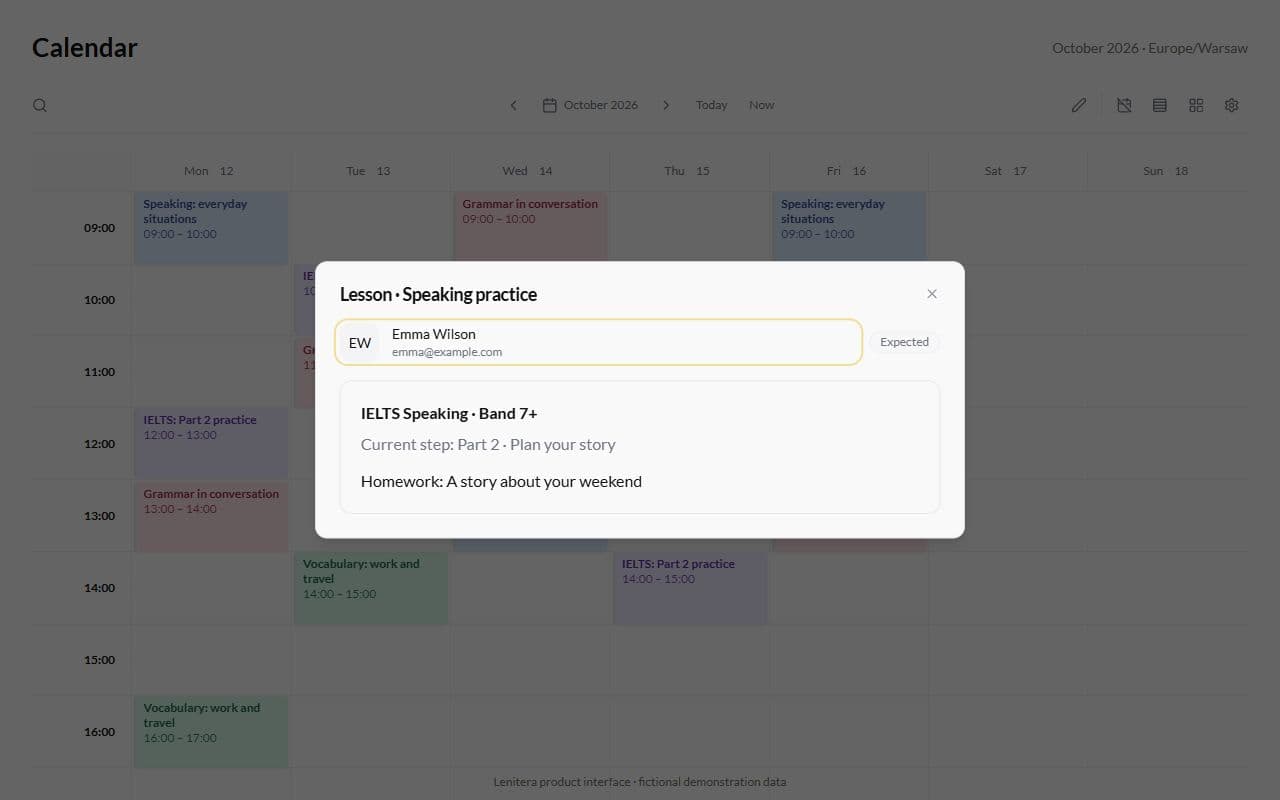
The student profile from an event
A lesson preview and a jump to the profile — without leaving the calendar.
Conflict with another lesson
The system will not let you save a slot over time that is already taken.
From an event to the student path
Hover a lesson → the student profile → "Programs" → open the program and the path. All without leaving the calendar page.

Product interface examples with fictional demo data.
More for your teaching

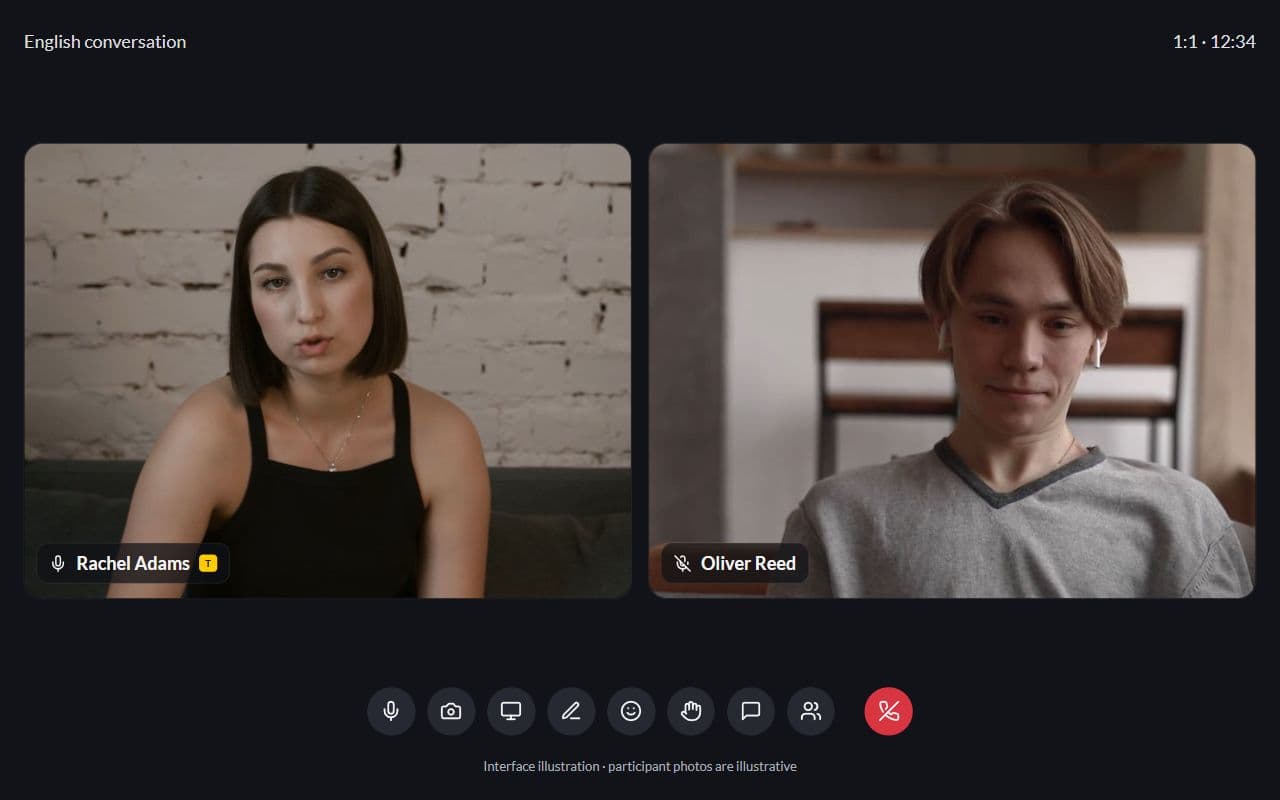
Student profile
Learning plans, tutor notes, lessons, and progress — context before the lesson
Learn more
Frequently asked questions
- The calendar is for your schedule and your lessons. Public booking happens on your tutor page, or you add students by hand.
- Yes — in their dashboard and in the reminder emails. Parents too, if their dashboard is on.
- Yes. One slot for the whole group — a lesson with a shared path and individual progress.
- Yes. Hours, breaks and time-off blocks affect both the grid and the slots available for booking.
Build a schedule without the chaos
Connect the calendar to your students and their paths — the first lesson takes a couple of minutes to place.